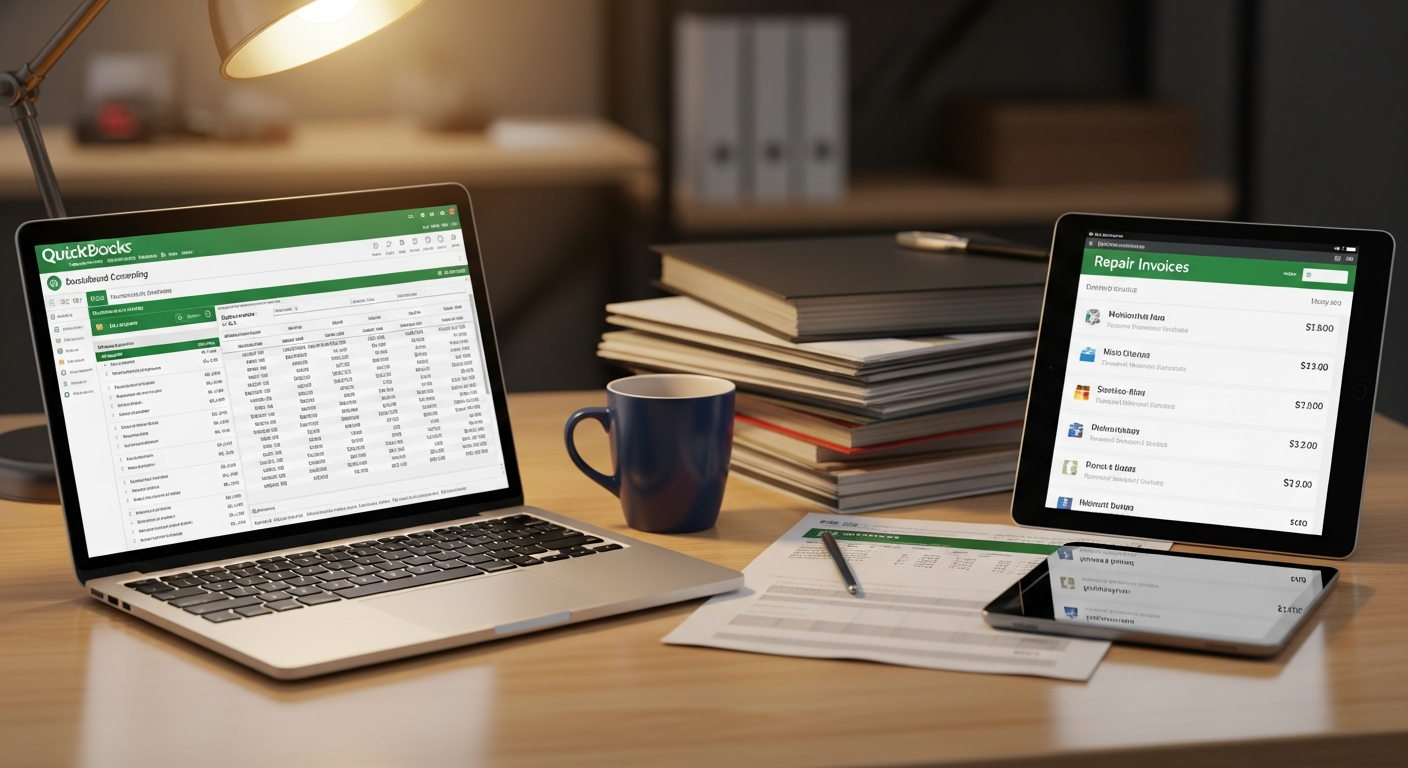
The Double-Entry Problem
Here's the daily routine at most RV repair shops: A technician finishes a job. You write up the invoice in your shop software — labor hours, parts used, line items, totals. You send it to the customer. They pay.
Then you open QuickBooks. And you type the whole thing again.
Customer name. Invoice number. Each line item. Parts. Labor. Tax. Payment method. Maybe you forget a line. Maybe you fat-finger a number. Maybe you just don't get to it until Friday and now you're entering 15 invoices from memory at 6pm when you'd rather be home.
This is the reality at thousands of RV shops across the country. And it's quietly costing you money, time, and sanity.
The Real Cost of Manual Data Entry
Let's quantify what double entry actually costs your shop:
Time. The average invoice takes 3–5 minutes to manually enter into QuickBooks. If you're closing 6–8 jobs per day, that's 20–40 minutes of pure data entry. Every. Single. Day. Over a year, that's 80 to 160 hours — two to four full work weeks spent typing numbers into a computer that another computer already has.
Errors. Manual entry has an error rate of roughly 1–3% per field. When you're entering hundreds of invoices per month, errors accumulate. A $1,200 invoice entered as $120. A customer name misspelled so it creates a duplicate record. A payment recorded against the wrong invoice. These mistakes don't just waste time to fix — they create discrepancies that haunt you at tax time.
Tax season headaches. Your accountant pulls your QuickBooks data for tax prep. If your QB doesn't match your actual invoices, someone has to reconcile the difference. At $150–$300/hour for a CPA, every discrepancy costs real money to untangle.
Cash flow blindness. When invoices aren't entered into QB the same day, your financial picture is always out of date. You think you're doing fine because last week's revenue looks solid, but you haven't entered this week's yet. You make a purchasing decision based on stale data. Oops.
What a Good QuickBooks Integration Actually Does
A real integration — not a CSV export you manually import — works like this:
- You complete a work order in your shop software. Labor, parts, and notes are already captured.
- You click "Create Invoice." The invoice is generated automatically from the work order line items.
- The moment that invoice is created, it syncs to QuickBooks Online. Customer record, line items, amounts, tax — all of it. Automatically.
- When the customer pays, the payment is recorded in your shop software AND in QuickBooks. Same amount, same date, linked to the correct invoice.
- Your QuickBooks is always up to date. No manual entry. No end-of-day catch-up. No Friday reconciliation sessions.
The Details That Matter
Not all QuickBooks integrations are created equal. Here's what separates a useful integration from a frustrating one:
Two-way sync vs. one-way push. A one-way push sends invoices from your shop software to QuickBooks, but changes made in QB don't come back. A two-way sync keeps both systems in agreement. If your accountant adjusts something in QB, your shop software reflects it.
Customer matching. When you sync an invoice, the integration needs to match the customer in your shop software to the customer in QuickBooks. Good integrations match by email or name automatically. Bad ones create duplicate customer records every time, and you end up with "John Smith," "John smith," and "J. Smith" as three separate customers in QB.
Line item detail. Some integrations sync the invoice as a single lump sum. That's useless for reporting. You want each line item — every part, every labor entry — synced individually so your QuickBooks reports show you actual parts revenue vs. labor revenue vs. other income.
Payment status tracking. When a customer pays an invoice, both systems should show it as paid. If you have to manually mark invoices as paid in QB after recording payment in your shop software, you still have a manual step — and a reconciliation problem.
How to Set This Up in SymFlow
If you're using SymFlow, the QuickBooks integration is built in and takes about 5 minutes to connect:
- Go to Settings → Integrations → QuickBooks Online
- Click "Connect to QuickBooks" — this opens the standard Intuit OAuth flow
- Authorize SymFlow to access your QuickBooks account
- Done. From this point forward, every invoice you create in SymFlow syncs to QuickBooks automatically.
When you record a payment — whether it's a Stripe payment link, a Square card charge, or a manual cash payment — the payment record syncs to QB too. Your books stay accurate without any manual intervention.
Tips for Keeping Your Books Clean
Even with a great integration, there are a few habits that will keep your financial data pristine:
Standardize your customer names. Pick a format — "First Last" or "Last, First" — and stick with it. This prevents duplicate customer records in both systems.
Invoice the same day the job closes. Don't let invoices pile up. When a job is marked complete, create the invoice immediately. With SymFlow, this is one click from the completed work order. The longer you wait, the more likely you are to forget a line item or undercharge.
Reconcile weekly, not monthly. Even with automatic sync, spend 10 minutes every Friday comparing your shop software's invoice totals to QuickBooks. Catch discrepancies early when they're easy to fix, not at month-end when you're buried.
Use categories consistently. Set up income categories in QuickBooks that match your shop's service types — Electrical, Plumbing, Appliance, HVAC, Structural, etc. When your SymFlow invoices sync with proper categories, your QB reports tell you exactly which service lines are most profitable.
Don't skip partial payments. If a customer pays a deposit or makes a partial payment, record it immediately in your shop software. The sync will push it to QB. Partial payments that live in your head or on a sticky note are guaranteed to become accounting problems.
The Bottom Line
Double entry isn't just annoying — it's expensive, error-prone, and completely unnecessary in 2026. If your shop software doesn't sync directly to QuickBooks Online, you're paying a hidden tax in labor hours and accounting mistakes every single month.
SymFlow's invoicing and payment tools connect directly to QuickBooks. Invoices sync automatically. Payments sync automatically. Your books are always current.
Start your free 30-day trial and connect QuickBooks in the first 5 minutes. No credit card required.